
How to Set Up IPTV on Firestick in the USA
Firestick IPTV setup can be straightforward when you know which application you need, where to install it and which service details are required. This guide explains a practical setup process using the Downloader app, while keeping the exact steps flexible because Fire TV menus and application availability can change.
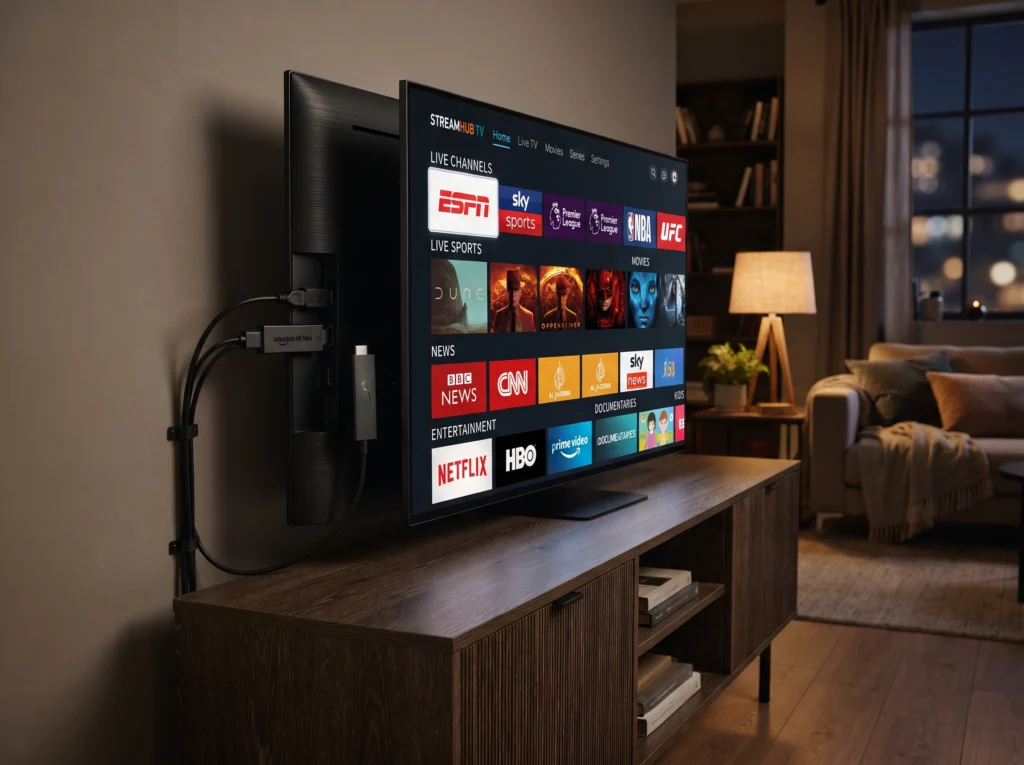
The goal is to help you understand the setup rather than simply follow a list of clicks that may become outdated after a Fire TV update.
What You Need Before Setting Up IPTV on Firestick
-
- A compatible Amazon Fire TV Stick or Fire TV device.
-
- A stable internet connection.
-
- An IPTV service and the login or activation details supplied by that service.
-
- A compatible IPTV application.
-
- A TV connected to the Firestick.
If you are comparing services, review our IPTV Services page, compare IPTV plans for USA viewers, and check the IPTV Channel List before choosing.
What Is Downloader on Firestick?
Downloader is an application commonly used on Fire TV devices to access and install files or applications from a web address. Its availability and Amazon’s installation rules can change, so always use the current Fire TV interface and only install applications from sources you trust.
Step 1: Connect Your Firestick
Connect the Firestick to your TV, power it properly and complete the initial Fire TV setup. Connect the device to your Wi-Fi network and install any available system updates before beginning the IPTV setup.
Step 2: Install Downloader
Open the Fire TV search function and look for Downloader. Select the official application available through the Amazon app experience on your device and install it.
If Downloader is not available in your region or on your device, do not assume that an unofficial copy is safe. Check Amazon’s current Fire TV guidance or use another supported installation method.
Step 3: Review Fire TV Installation Settings
Some Fire TV versions use settings that control whether applications from outside the standard Amazon app experience can be installed. The exact menu names can change between Fire OS versions.
Before changing a security-related setting, understand what the setting does and return it to a more restrictive state when it is no longer needed. Avoid installing unknown APK files or applications from untrusted websites.
Step 4: Install Your IPTV Application
Use the installation method recommended by your IPTV application and service. If the application is available through an official app store, that is generally the simplest route.
If a provider gives you an official installation address, verify the address carefully before entering it into Downloader. Never enter a random APK URL just because it appears in a search result or social media post.
Step 5: Add Your IPTV Service Details
After opening the IPTV application, you may be asked for information such as a username, password, playlist URL or another service-specific login method.
Use the exact details supplied by your provider. Do not share your private login credentials publicly.
Step 6: Check the EPG and Channel List
Once the account is connected, allow the application time to load its available content. Depending on the service and application, you may see live channels, an electronic programme guide (EPG), VOD categories or other sections.
If the EPG is empty or shows the wrong time, that is a separate configuration issue. You can troubleshoot it with a dedicated EPG guide rather than reinstalling everything.
Step 7: Test Live TV and VOD
Test several different channels instead of checking only one. If the service includes VOD, test a supported title as well. This helps distinguish a general setup problem from an issue affecting one particular stream.
Firestick IPTV Buffering After Setup
If IPTV works but buffers, do not immediately reinstall the application. First check your Wi-Fi connection, restart the Firestick and router, test another channel and compare the same service on another compatible device.
Our guide on IPTV buffering and possible ISP throttling explains a systematic way to troubleshoot the connection.
Firestick IPTV Setup Problems and Quick Checks
| Problem | What to check first |
|---|---|
| Downloader cannot be found | Check the current Amazon app experience and your device/region availability. |
| Application will not install | Check storage, Fire OS updates and the installation source. |
| Login fails | Recheck the credentials supplied by your provider. |
| Channels do not load | Check internet access, account status and whether other channels work. |
| EPG is missing | Check the application’s EPG configuration and timezone settings. |
| Video buffers | Test Wi-Fi, another stream and another device before changing the whole setup. |
How to Keep Your Firestick IPTV Setup Safe
-
- Install applications from trusted sources.
-
- Verify download addresses before using them.
-
- Keep Fire OS and installed applications updated.
-
- Do not share your IPTV username or password publicly.
-
- Remove applications you no longer use.
-
- Be cautious with APK files hosted on unknown websites.
Can You Use IPTV on Other Fire TV Devices?
n
The exact application compatibility depends on the Fire OS version, device model and IPTV application. A setup that works on one Fire TV device may require different steps on another, so check the current application requirements before installing anything.
Frequently Asked Questions
Can I set up IPTV on a Firestick?
n
Yes, compatible IPTV applications can be used on supported Fire TV devices. The installation method depends on the application and the current Fire OS environment.
Do I need Downloader for every IPTV application?
n
No. Some applications are available through an official app store, while others may use another supported installation method.
Why does my IPTV app open but show no channels?
n
Check your login or playlist details, internet connection and account status. Testing another channel can also show whether the problem affects the whole service or only one stream.
Why is IPTV buffering on my Firestick?
n
Possible causes include Wi-Fi quality, network congestion, device performance, application configuration or an individual stream. Troubleshoot these areas one at a time.
Can I use a VPN on Firestick?
n
VPN applications are available for some Fire TV devices, but compatibility and installation options vary. A VPN is not automatically required for IPTV and is not a guaranteed solution for buffering.
Final Thoughts
Setting up IPTV on a Firestick is mainly about using a compatible application, entering the correct service details and testing the setup methodically. Keep your Fire TV software updated, use trusted installation sources and troubleshoot the device, network and stream separately when problems occur.
Once your setup is working, explore the IPTV channel list, compare IPTV plans for USA viewers, or review the IPTV for Firestick option. For more help, read our provider and device support guide.